Assigning & Managing Users
Description
As a Company Admin, I am able to create users in the SkillsNow platform and manage their details so that I know user details are always up to date and I can manage the user base effectively.
Applicable User Roles
List of roles that have access or can use this feature.
Company Admin
How To Add and Assign users
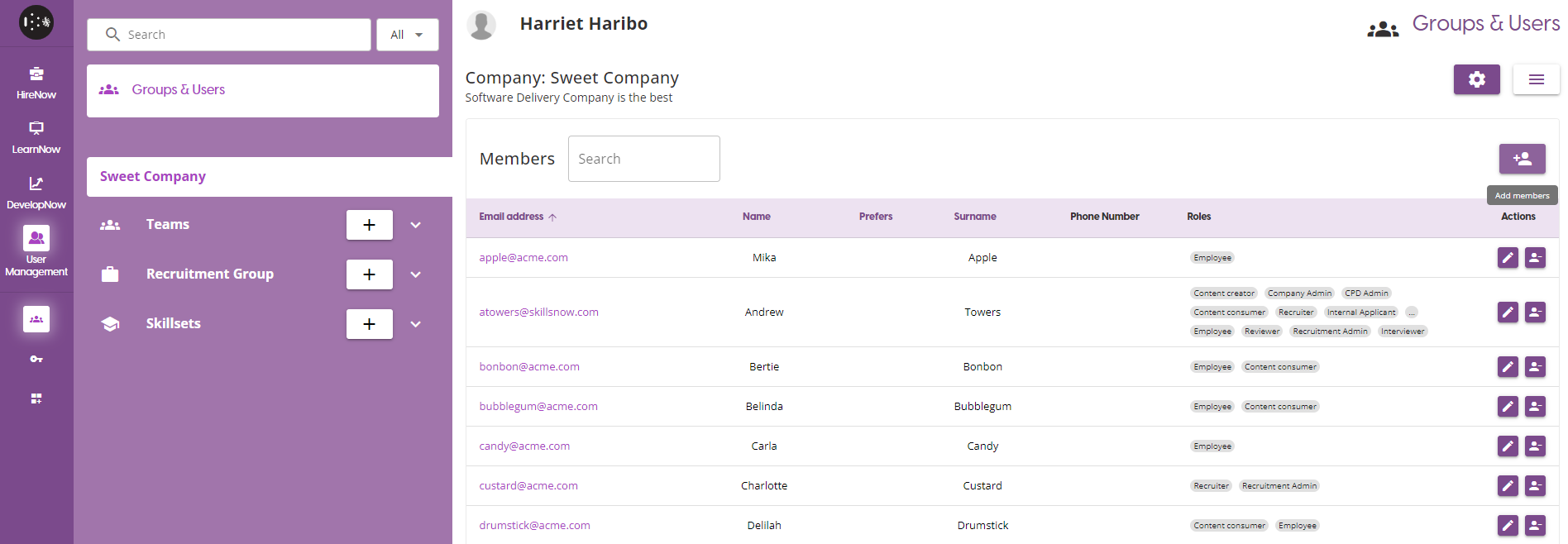
If you wish to create new accounts for users of SkillsNow, first make sure you have the Company selected in the list of groups in User Management. Click on the 'Add Members' button to take you to the Assign & Create Users page.
In order to assign a user to a group, make sure you have the group selected in the group list before clicking on the 'Add members' button.
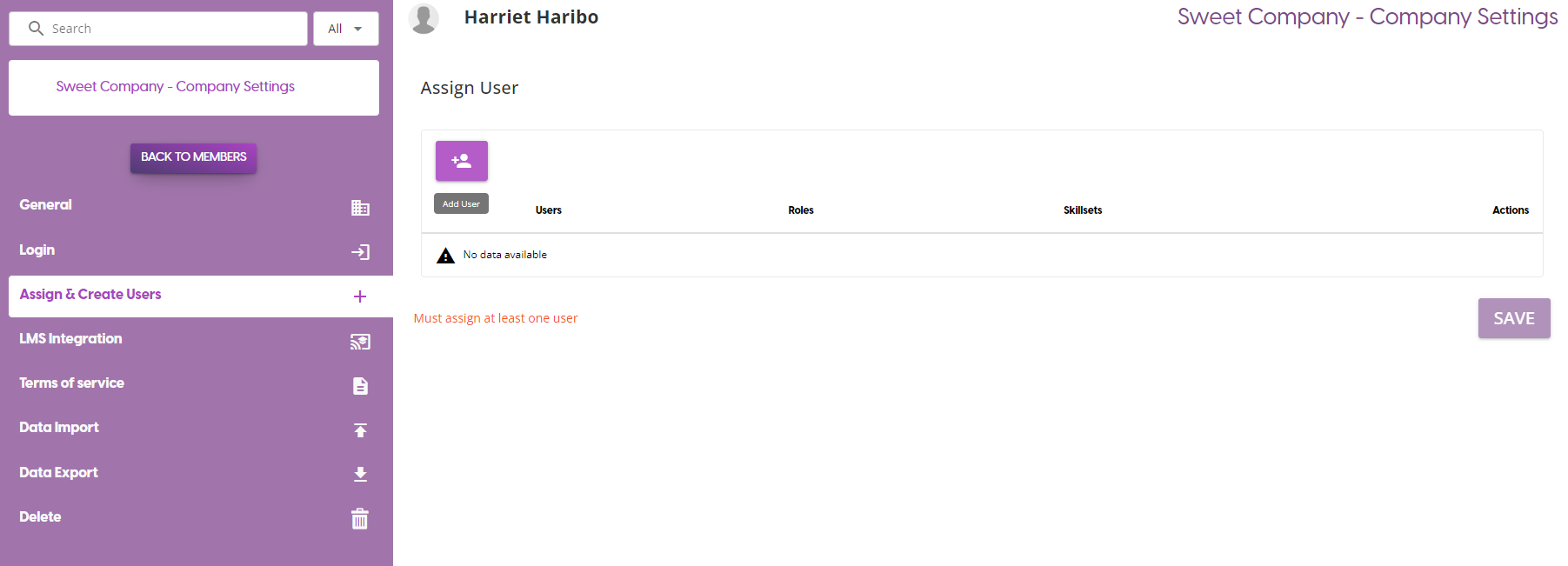
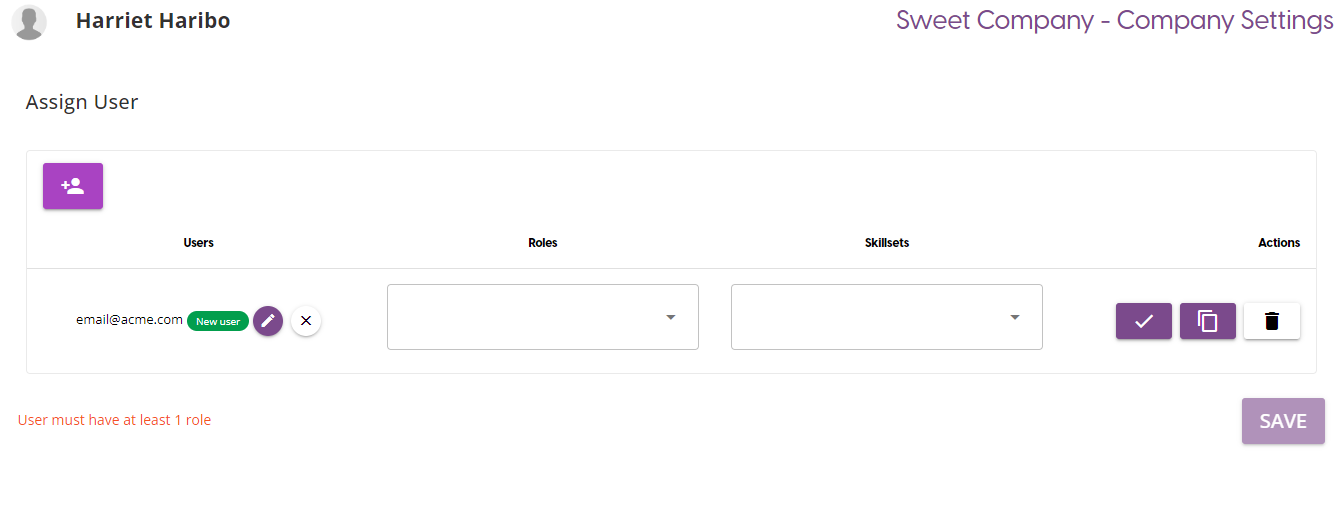
Once on this page, to add a new user row in the Assign User table, click on the Add User icon at the top of the table. This will give you the ability to create a new user, or to assign one to the group.
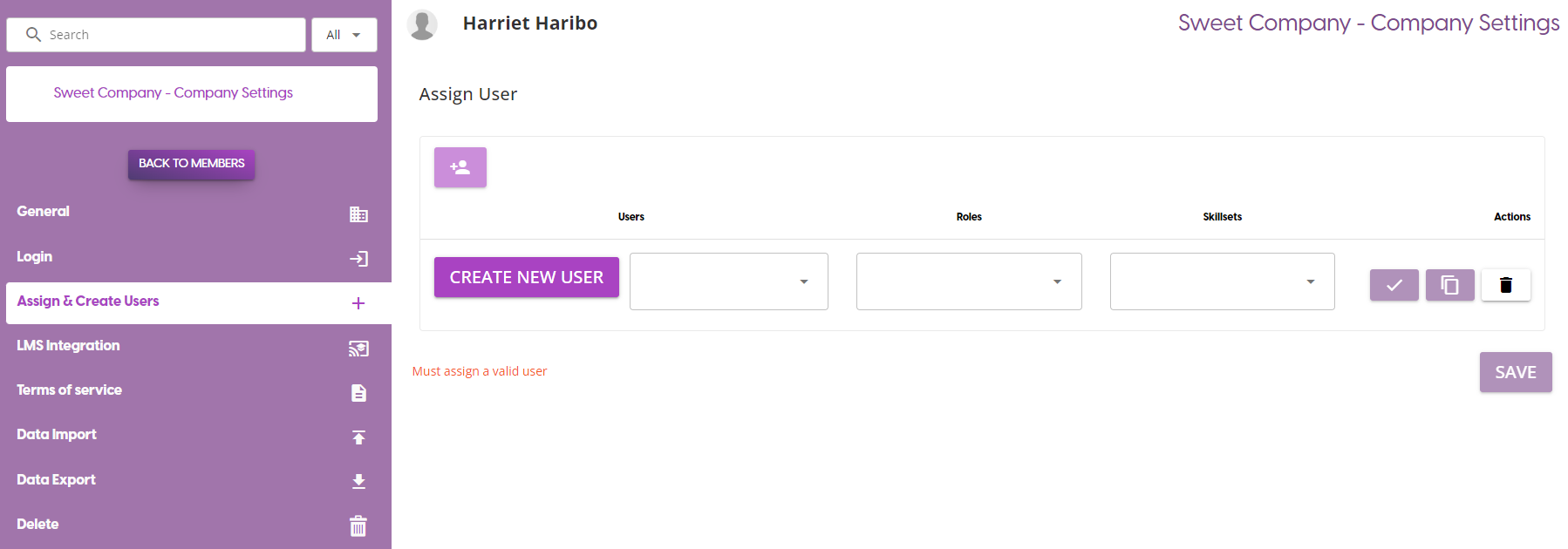
To create a new user, click on the Create New User button to open a window which allows you to enter the basic details of the new user.
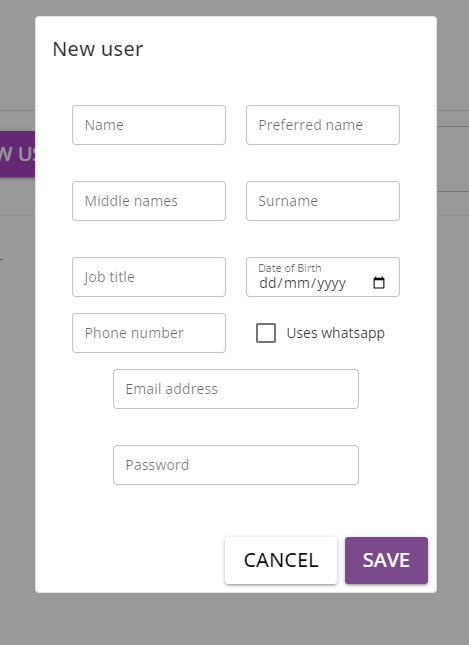
Once you have entered all the required details for a enw user, click on the Save button to insert the new user into the table.
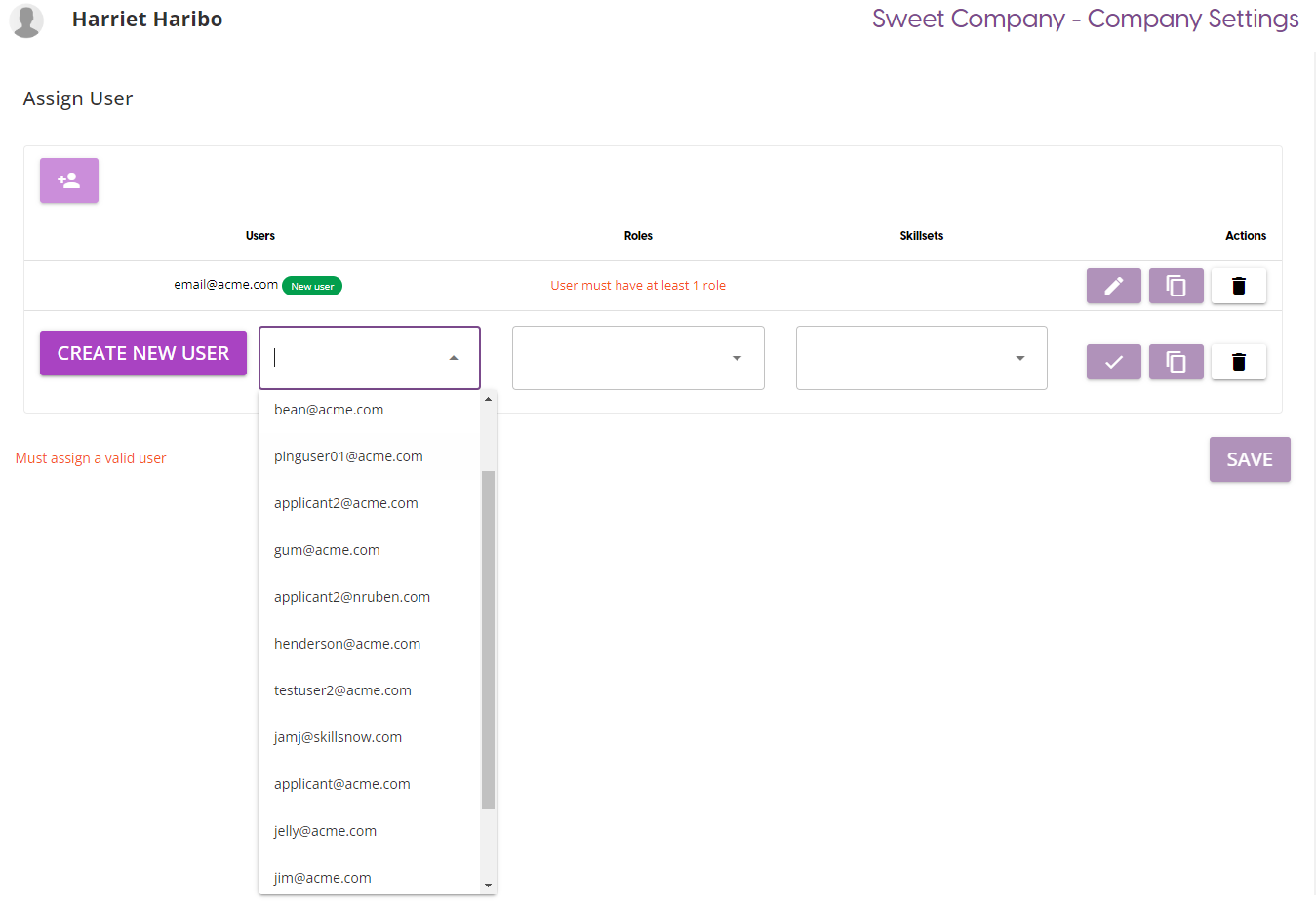
You can also search for existing users on the platform by clicking on the Users dropdown menu, which will show a list of users who can be assigned to a group.
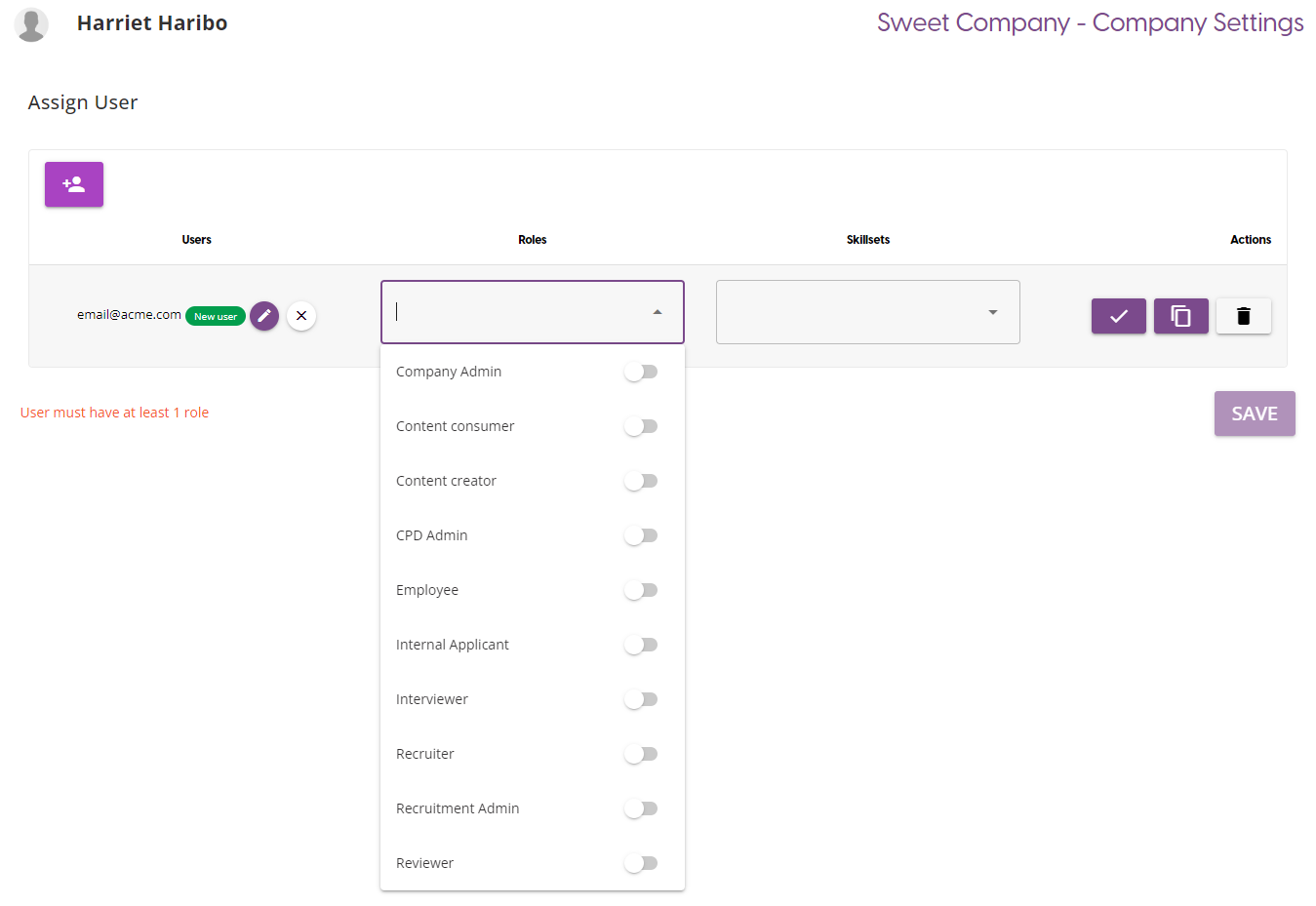
To complete the process of inserting/assigning a new user to a group, you must select a role for a user at the group level. Clicking on the Roles dropdown gives a list of roles that can be assigned.
You also have the option to assign a skillset to a user from the Skillsets dropdown. If a user is already a skillset member, their skillsets will already be selected from the dropdown when selecting the user.
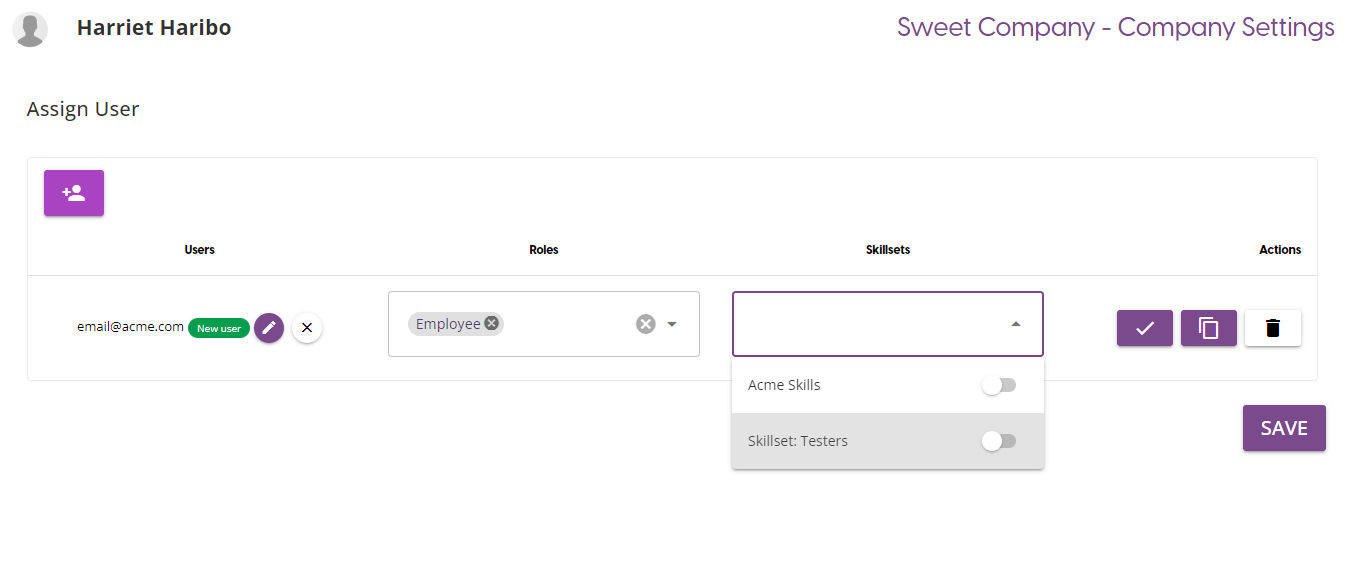
Once you have finished selecting users to assign to a group, click on the Save button to complete the process.
Update User Roles
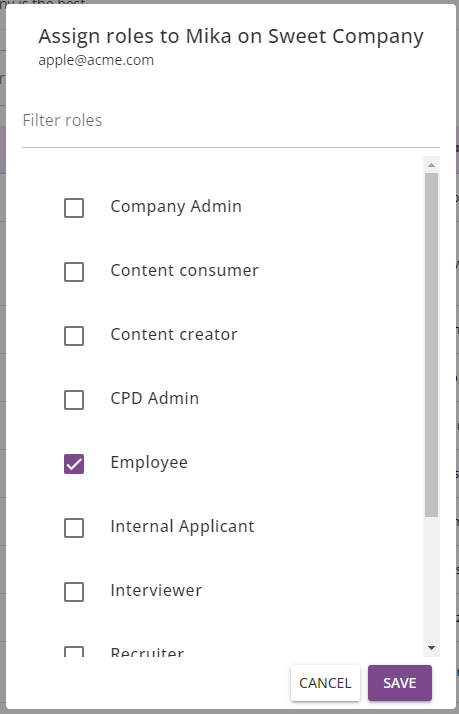
In order to update a users roles, first find the user from the Members table. You can click on the 'Edit Roles' icon to open a window of the roles available to a user. Note that the window will only show roles from the currently selected group, so if you want to edit a users roles at a team level you must first select the team user group from the Teams list.

From this window, simply check or uncheck the roles you wish to add or remove, and once you are happy with the changes made click on the Save button. Otherwise, click on the Cancel button to undo any of the changes made. You can filter through the roles by typing in a search term into the Filter Roles search bar, which will update the list to show roles matching the search term.
Update User Details
In order to update a users details, you can click on the users email address in the Members table to take you to the users profile.
General
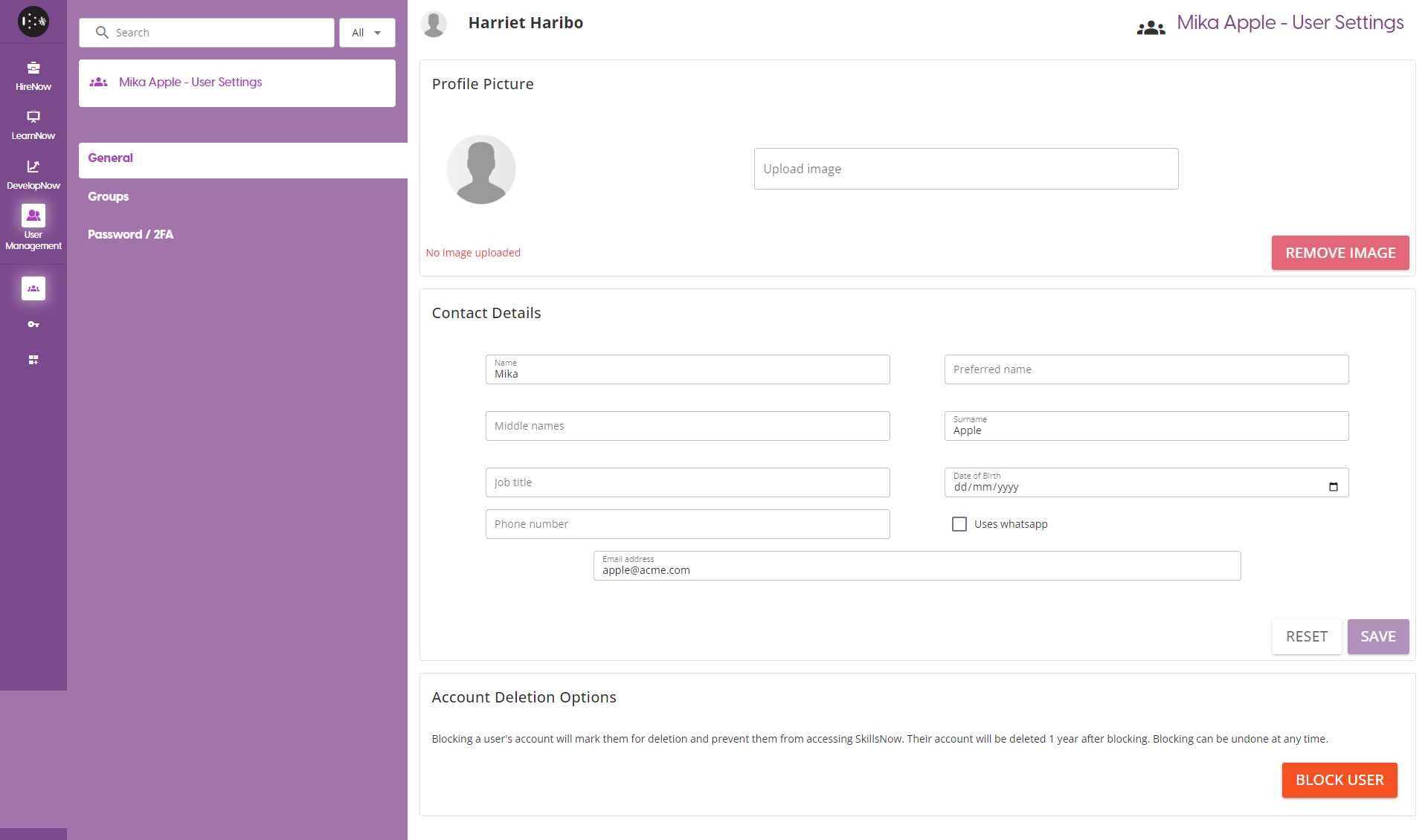
In the general section, you can update some basic details of the user:
-
Profile picture: Click on the 'Upload Image' section to select a file from your device to user as a profile picture. If you wish to remove the current image, click on the 'Remove Image' button.
-
Contact Details: Update any of the basic details of the user here. If you wish to discard any changes you made, click on the 'Reset' button to undo any unsaved changes. Otherwise, click on the 'Save' button to confirm any changes you have made.
-
Account Deletion: Users cannot be deleted outright from the company as a company admin. Instead, you must first block the user via this page first. This will prevent the user from accessing SkillsNow, but will keep any information related to the user. After a year from the block date, the user will be deleted from the platform.
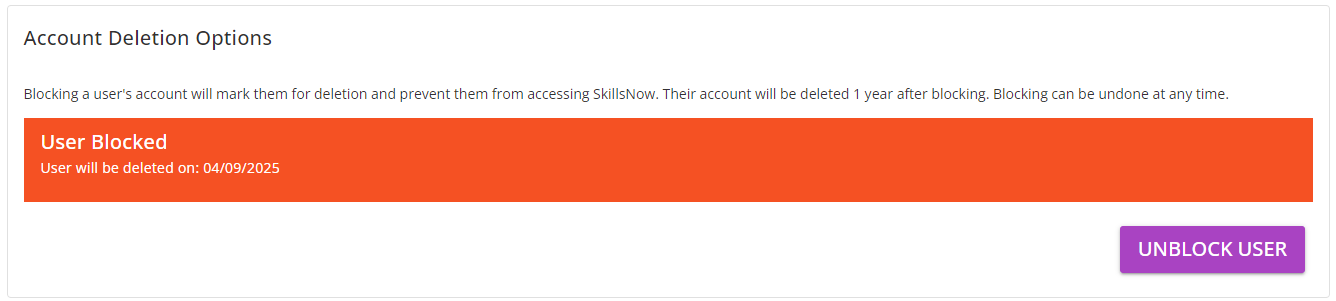
If you wish to unblock the user, you can click on the unblock button at any time to give them access to the platform again and reset the deletion timer for the account.
Groups
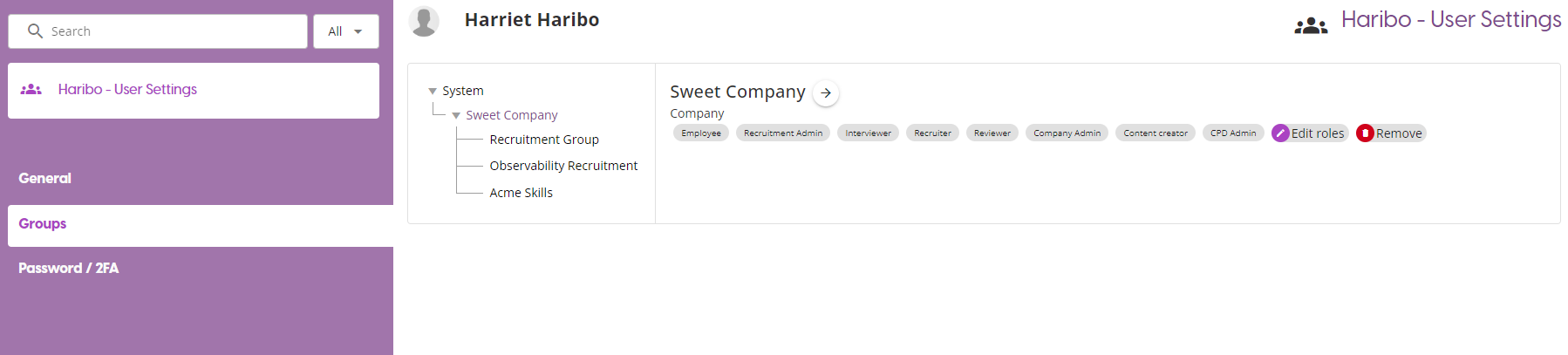
This page give you the same functionality as the 'Edit Roles' window from the Members table, allowing you to add and remove Roles from a user. However, this page also adds a tree model to give a visual representation of which Roles are applied at each level.
Password/2FA
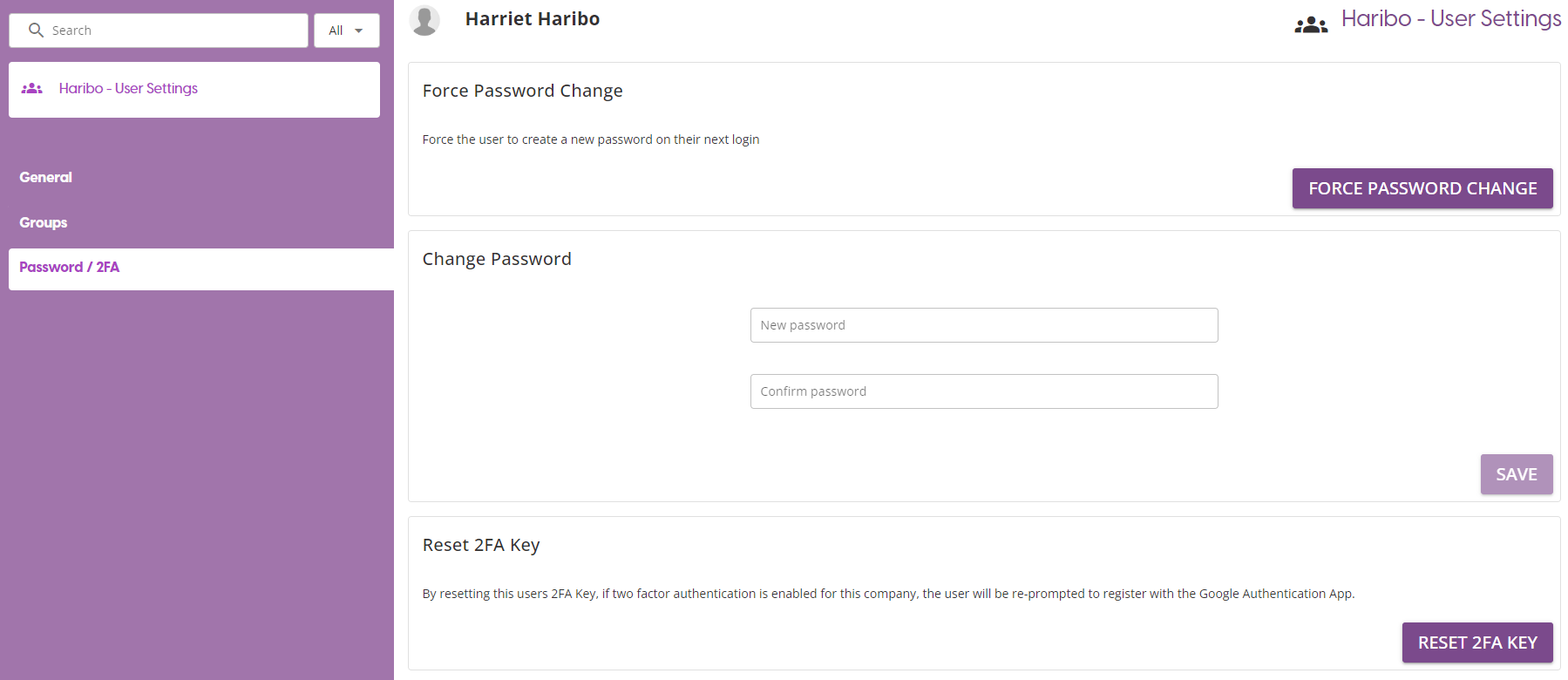
This page gives you various options around updating and Password options on the platform.
Force Password Change: This will mark the users account so that the next time they login, they will be forced to update their current password to a new one.
Change Password: Enter and confirm a new password for a user. Note that no email is sent out when a password is changed, so the user will have to be notified manually.
The password criteria:
-
Between 6-20 characters
-
At least one upper case
-
At least one lower case
-
At least one number
Reset 2FA Key: If 2FA is enabled for the company, this will reset the individuals authentication to allow them to re-register with the Google Authentication app.